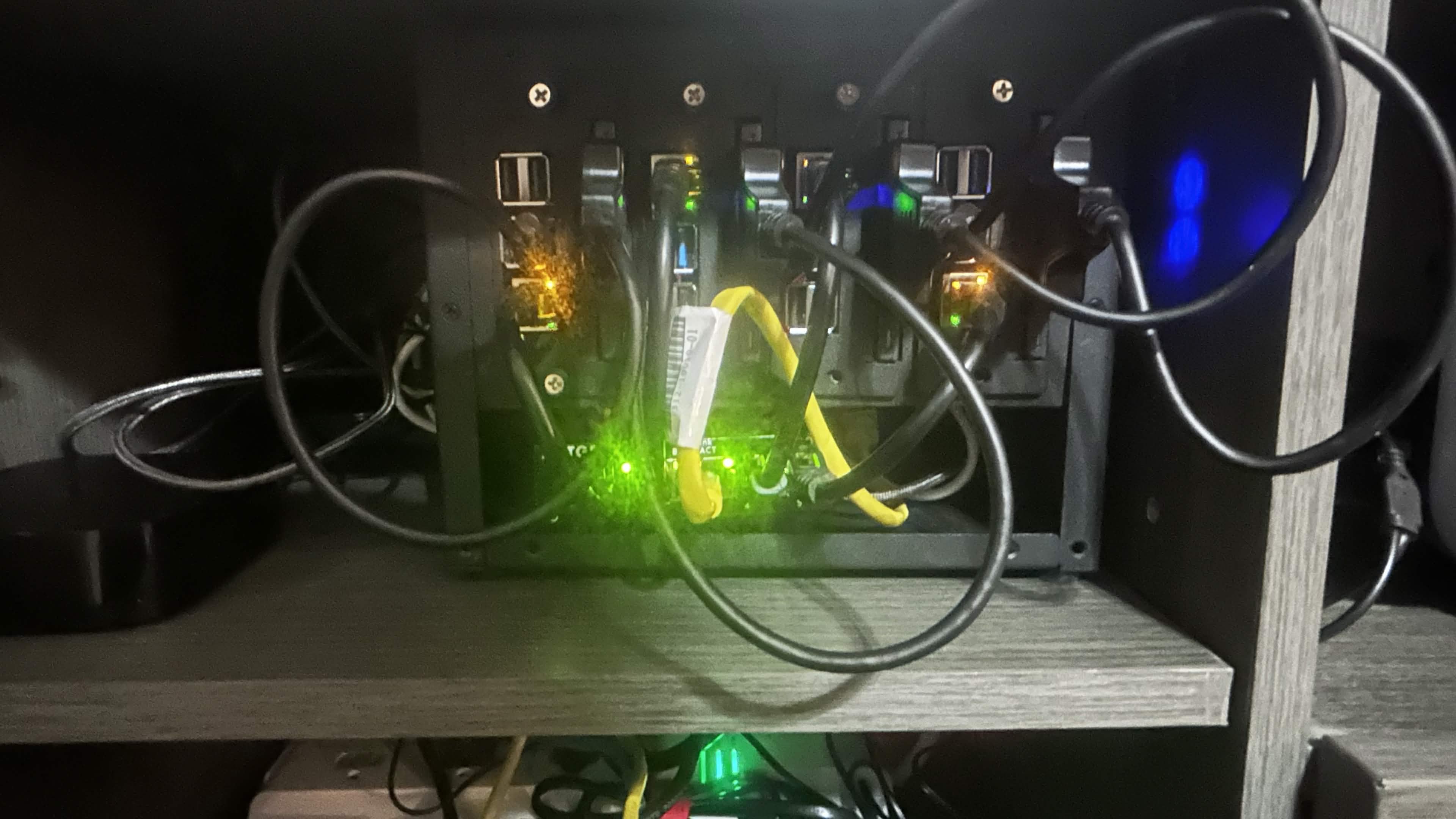
A 4-node Raspberry Pi cluster running Docker Swarm with zero trust architecture, hosting a website failover system and a Minecraft server — secured, tunneled, and fully automated with nightly updates.
The goal of this project was to build a self-managed home server cluster using four Raspberry Pis running Docker Swarm. The primary Pi 5 acts as the cluster head — it manages worker nodes, hosts services, handles all external traffic, and runs nightly updates across every node. Worker Pis only wake when the primary is overloaded, keeping power consumption low under normal conditions.
The cluster is IP-segmented across a dedicated subnet, with each node assigned a static address:
xxx.xxx.xxx.100  ← Primary (Pi 5, Docker Swarm manager)
xxx.xxx.xxx.101  ← Worker node 1
xxx.xxx.xxx.102  ← Worker node 2
xxx.xxx.xxx.103 ← Worker node 3Starting with the Pi 5 head node, the first step was updating the system and installing Docker:
sudo apt update && sudo apt upgrade -y
curl -fsSL https://get.docker.com | shSince external users would be accessing services on this cluster, UFW was configured with a deny-by-default stance on incoming traffic:
sudo apt install ufw -y
sudo ufw default deny incoming
sudo ufw default allow outgoing
sudo ufw allow ssh
sudo ufw enableFail2Ban was installed to automatically ban IPs that make too many failed login attempts:
sudo apt install fail2ban -y
sudo systemctl enable fail2ban
sudo systemctl start fail2banPasswords can always be cracked given enough time and resources. Public key authentication was set up from the accessing machine, with a configuration file to simplify SSH sessions:
# Windows SSH config (~/.ssh/config)
Host pi5-primary
    HostName (hostname or IP)
    User (pi username)
    IdentityFile (path to key)

# Then generate the key
ssh-keygen -t ed25519 -C "pi5-primary" -f C:(path to key)

# Transfer to Pi
type C:\(path to key) | ssh yourusername@(ip) "mkdir -p ~/.ssh && cat >> ~/.ssh/authorized_keys"
Once confirmed working, password authentication was disabled entirely:
sudo nano /etc/ssh/sshd_config
# Change: PasswordAuthentication yes
# To:     PasswordAuthentication no

sudo systemctl restart sshTo limit blast radius if Docker is ever compromised, it runs under a dedicated non-login service user — a core principle of zero trust architecture:
sudo useradd -r -s /sbin/nologin dockeruser
sudo usermod -aG docker dockeruserUnused services (e.g. Bluetooth) were also identified and disabled to reduce the attack surface:
sudo systemctl list-units --type=service --state=runningDocker Swarm was initialized on the primary node, generating a join token for worker Pis to use:
docker swarm init --advertise-addr xxx.xxx.xxx.100

# Returns:
docker swarm join --token (token is here)

# Verify cluster nodes
docker node lsThe primary service hosts a backup of a GitHub Pages site. Since GitHub is up 99% of the time, the container stays offline and only spins up if GitHub goes down — freeing resources with only a 1–2 minute failover window.
mkdir -p ~/homelab/website
cd ~/homelab/website
git clone https://github.com/(username)/(repo).git site
The Docker Compose config for Nginx:
services:
  website:
    image: nginx:alpine
    container_name: website
    restart: unless-stopped
    ports:
      - "80:80"
    volumes:
      - ./site:/usr/share/nginx/html:ro
    user: "999"
    networks:
      - homelab

networks:
  homelab:
    driver: bridge
cd ~/homelab/website
docker compose up -dA Python monitor script pings GitHub every 5 minutes and brings the container up or down accordingly:
import subprocess
import time
import urllib.request

GITHUB_URL = "https://(username).github.io/(repo)"
COMPOSE_DIR = "/home/(user)/homelab/website"
CHECK_INTERVAL = 300  # 5 minutes

def is_github_up():
    try:
        urllib.request.urlopen(GITHUB_URL, timeout=10)
        return True
    except:
        return False

def container_running():
    result = subprocess.run(["docker", "ps", "--filter", "name=website",
        "--format", "{{.Names}}"], capture_output=True, text=True)
    return "website" in result.stdout

while True:
    if is_github_up():
        print("GitHub is up")
        if container_running():
            subprocess.run(["docker", "compose", "-f",
                f"{COMPOSE_DIR}/docker-compose.yml", "down"])
            print("Stopped container")
    else:
        print("GitHub is DOWN - starting container")
        if not container_running():
            subprocess.run(["docker", "compose", "-f",
                f"{COMPOSE_DIR}/docker-compose.yml", "up", "-d"])
            print("Container started")
    time.sleep(CHECK_INTERVAL)
The monitor is registered as a systemd service so it starts on boot:
[Unit]
Description=GitHub Monitor
After=docker.service
Requires=docker.service

[Service]
ExecStart=/usr/bin/python3 /home/(user)/homelab/website/monitor.py
Restart=always
User=(username)

[Install]
WantedBy=multi-user.target
sudo systemctl enable monitor
sudo systemctl start monitor
sudo systemctl status monitorAMP (Application Management Panel) provides a GUI for managing the Minecraft server. The official AMP Docker image doesn't support ARM processors, so a community-maintained extension was used instead.
mkdir ~/homelab/Minecraft
cd ~/homelab/Minecraft
nano ~/homelab/minecraft/docker-compose.ymlAdditional UFW rules were needed to expose the Minecraft server ports:
sudo ufw allow (port 1)
sudo ufw allow (port 2)Opening ports on a home gateway is dangerous and maintaining a secure exposed endpoint is expensive. Instead, a Cloudflare Tunnel was configured — no ports need to be opened and the home IP stays hidden. After attaching a domain to Cloudflare and waiting for DNS propagation, the AMP management panel and website backup were both connected through the tunnel.
Cloudflare does not allow TCP tunneling for Minecraft without a paid plan, so playit.gg was used instead to tunnel the game server traffic:
curl -SsL https://playit-cloud.github.io/ppa/key.gpg | gpg --dearmor | sudo tee /etc/apt/trusted.gpg.d/playit.gpg >/dev/null

echo "deb [signed-by=/etc/apt/trusted.gpg.d/playit.gpg] https://playit-cloud.github.io/ppa/data ./" | sudo tee /etc/apt/sources.list.d/playit-cloud.list

sudo apt update
sudo apt install playitBefore joining the swarm, the primary node needs a few ports open so Docker can communicate with workers — restricted to the local subnet only:
sudo ufw allow from xxx.xxx.xxx.0/24 to any port 2377 proto tcp
sudo ufw allow from xxx.xxx.xxx.0/24 to any port 7946 proto tcp
sudo ufw allow from xxx.xxx.xxx.0/24 to any port 7946 proto udp
sudo ufw allow from xxx.xxx.xxx.0/24 to any port 4789 proto udp
After SSH keys and firewall rules were applied to each worker, they were added to the swarm:
docker swarm join --token (token) xxx.xxx.xxx.100:2377If the primary ever offloads a container to a worker Pi, that worker needs a way to serve traffic. Rather than tunneling all four Pis (which expands the attack surface), the primary acts as a traffic gateway. Workers have their outgoing traffic locked down to the local subnet and DNS only:
sudo ufw default deny outgoing
sudo ufw allow out to xxx.xxx.xxx.0/24
sudo ufw allow out to any port 53A single bash script on the primary handles updates across all nodes and all Docker containers. If more services are added later, only this one script needs to be updated:
#!/bin/bash
CLUSTER_KEY="/home/(user)/.ssh/cluster"
WORKERS="(user1)@xxx.xxx.xxx.101 (user2)@xxx.xxx.xxx.102 (user3)@xxx.xxx.xxx.103"

echo "=== Nightly Update Started $(date) ===" >> /var/log/nightly-update.log

for NODE in $WORKERS; do
    echo "--- Updating $NODE ---" >> /var/log/nightly-update.log
    ssh -i $CLUSTER_KEY $NODE "sudo apt update -y && sudo apt upgrade -y && sudo apt autoremove -y" >> /var/log/nightly-update.log 2>&1
done

echo "--- Updating primary ---" >> /var/log/nightly-update.log
sudo apt update -y && sudo apt upgrade -y && sudo apt autoremove -y >> /var/log/nightly-update.log 2>&1

echo "--- Updating Docker containers ---" >> /var/log/nightly-update.log
docker compose -f /home/(user)/homelab/website/docker-compose.yml pull >> /var/log/nightly-update.log 2>&1
docker compose -f /home/(user)/homelab/website/docker-compose.yml up -d >> /var/log/nightly-update.log 2>&1
docker pull cloudflare/cloudflared:latest && docker restart cloudflared >> /var/log/nightly-update.log 2>&1
docker pull mitchtalmadge/amp-dockerized:latest && docker restart amp >> /var/log/nightly-update.log 2>&1
docker system prune -f >> /var/log/nightly-update.log 2>&1

echo "--- Rebooting workers ---" >> /var/log/nightly-update.log
for NODE in $WORKERS; do
    ssh -i $CLUSTER_KEY $NODE "sudo reboot" >> /var/log/nightly-update.log 2>&1
done

echo "=== Update Complete $(date) ===" >> /var/log/nightly-update.log
An internal SSH key with no passphrase was added to the primary so it can connect to workers without prompting. The cron schedule runs updates at 3AM and reboots the primary at 4AM:
sudo crontab -e

0 3 * * * /home/(user)/homelab/nightly-update.sh
0 4 * * * /sbin/rebootThis project put zero trust principles into practice at a homelab scale — every layer of the stack was hardened rather than relying on a single perimeter. The architecture keeps the attack surface minimal: one public-facing node, SSH key-only authentication, a dedicated non-login service account for Docker, and worker nodes that can't reach the internet directly.
The automated failover and nightly update pipeline reflect real-world DevOps patterns: infrastructure that self-heals and self-maintains without manual intervention. Skills exercised include Linux administration, firewall configuration, Docker Swarm orchestration, tunneling without port forwarding, and Python scripting for monitoring automation.